The short version
- Prioritize by impact on revenue templates. Warning counts are a poor guide.
- Indexation and crawl control usually outrank minor on-page warnings.
- Rendering issues can hide content from both search engines and AI crawlers.
- Every fix needs evidence, an owner and a way to verify it.
Run any crawler on any website and you’ll get a long list of warnings. Missing alt text, long titles, redirect chains, duplicate meta descriptions, thousands of rows in a spreadsheet. Most audits find plenty. Where they fail is in treating every issue as equally important, which leaves the client with a 200-page document and no idea what to do on Monday.
A useful technical SEO audit answers three questions: what is stopping the pages that make money from being found, what is it costing, and what should be fixed first. Below is the order we work in, and why.
Start with the pages that make money
Before analyzing anything, identify the templates and sections that drive revenue or leads: category pages, service pages, product pages, location pages. Most sites run on a handful of templates, so a single fix to a category template can affect thousands of URLs at once.
Build a short list before you crawl:
- The top 20 to 50 landing pages by organic revenue or conversions.
- The templates those pages use.
- Commercial pages that should rank but don’t, such as a new service or a high-margin category.
Issues affecting those pages come first. A broken canonical on a blog tag archive can wait. A broken canonical on your main category template cannot.
A triage framework for every issue
Score each finding on three things, then sort.
| Question | High priority | Low priority |
|---|---|---|
| Which pages does it affect? | Revenue templates, key sections | Archives, old posts, utility pages |
| What does it block? | Crawling, indexing or rendering | Cosmetic or best-practice only |
| How many URLs? | Template-level, sitewide | A handful of one-off pages |
| Effort to fix | Config or template change | Manual page-by-page edits |
An issue that blocks indexing on a revenue template, fixable with one config change, goes to the top. Missing alt text on 40 old blog images goes to the bottom of the list, however red the crawler makes it look.
1. Indexation: are the right pages in the index?
Compare the pages you want indexed with what Search Console reports in the Page indexing report. You’re looking for two problems: important pages excluded, and low-value pages included.
- Important pages excluded. Check “Crawled, currently not indexed,” “Discovered, currently not indexed,” stray noindex tags and canonicals pointing to the wrong URL. Use URL Inspection on a sample of key pages.
- Low-value pages included. Parameter URLs, filter combinations, internal search results, thin tag pages and staging copies. These dilute the site and compete with the pages you want to rank.
Two points people mix up. Robots.txt controls crawling, not indexing, so a disallowed URL can still be indexed if other pages link to it. And a noindex tag only works if Google can crawl the page to see it, so don’t block a URL in robots.txt and expect its noindex to take effect. Canonical tags are also a hint. If internal links, sitemaps and canonicals point at different versions of a page, Google may pick its own.
2. Crawl: where are crawlers spending time?
On small sites crawl budget is rarely the problem. On larger sites, especially e-commerce with faceted navigation, it often is. Server log files show whether Googlebot reaches important sections regularly or spends its time on duplicate and parameterized URLs.
What to look at in the logs:
- Share of crawl going to parameter and filter URLs compared with category and product pages.
- How recently key templates were crawled.
- Status codes served to crawlers: 404s, 5xx errors and redirect chains on URLs that still get crawled.
Search Console’s Crawl stats report gives a lighter version if you can’t get logs. Fixes usually involve controlling facet URLs, cleaning XML sitemaps so they list only canonical, indexable 200 pages, and removing internal links to redirected or broken URLs.
3. Rendering: can search engines see your content?
If key content or links appear only after JavaScript runs, compare the raw HTML with the rendered HTML. URL Inspection in Search Console shows the rendered version Google sees. Look for product grids, prices, internal links and body copy that are missing from the raw source.
Google renders JavaScript, but rendering can be delayed and doesn’t always succeed. AI crawlers often handle JavaScript less fully than search engines, so content that only exists after rendering is at greater risk of being missed in AI answers too. If you care about visibility in AI search, see our notes on AI Overviews and AI Mode. Server-side rendering or static generation for important templates is usually the safest fix.
4. Architecture and internal links
Important pages should be reachable within a few clicks of the homepage and linked from relevant, authoritative pages. Orphaned or deeply buried commercial pages rarely perform well.
- Find orphan pages by comparing crawl data with sitemaps and analytics landing pages.
- Check click depth for revenue pages. If a key category sits five clicks deep, it’s telling Google it doesn’t matter.
- Look at internal anchor text. Generic anchors like “read more” waste a ranking signal you fully control.
- Make sure navigation links exist in the HTML and don’t depend on hover scripts or JavaScript events.
5. Performance where it affects users
Core Web Vitals (LCP, INP and CLS) count most on templates with high traffic and conversion value. Use field data from Search Console or the Chrome UX Report first, since lab scores from a single test can mislead. Fix the slow templates that carry traffic before chasing perfect scores everywhere.
Common, high-return fixes: oversized hero images, render-blocking scripts, third-party tags loading early, layout shifts from ads or late-loading banners, and heavy JavaScript on product listing pages. Remember that Google uses mobile-first indexing, so test the mobile version of each template first.
Common audit mistakes
- Ranking issues by crawler severity. Tool labels know nothing about your revenue.
- Auditing desktop only. Google indexes the mobile version.
- Listing problems without root causes. “2,000 duplicate titles” is a symptom. “The filter template generates indexable URLs” is the root cause.
- Ignoring the CMS and dev process. If developers can’t act on a recommendation in the system you use, it won’t ship.
- No baseline. Without before figures for indexed pages, crawl stats and clicks by template, you can’t show that anything worked.
What we’d do first
- List revenue templates and top landing pages from analytics and Search Console.
- Run URL Inspection on a sample from each template: indexed, canonical selected, rendered content present.
- Review the Page indexing report for excluded commercial URLs and included junk.
- Crawl the site and check robots.txt, XML sitemaps, canonicals and redirects against that list.
- Pull logs or Crawl stats if the site has more than a few thousand URLs.
- Write up the top ten fixes using the triage table, with everything else in an appendix.
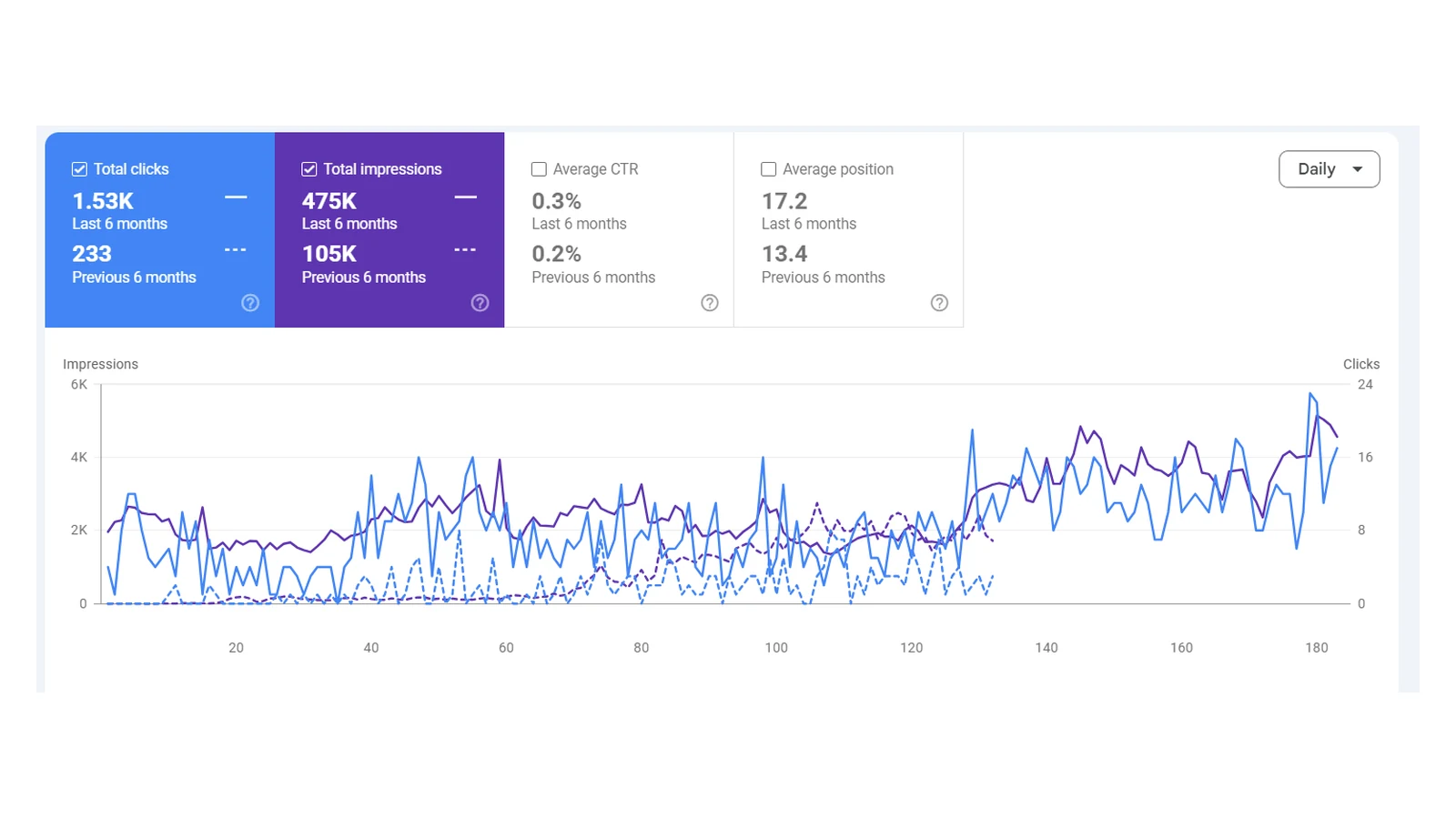
Expect slower gains on a mature site. One cleaning supplies store saw clicks move from 5.72K to 6K (+4.9%) and impressions from 333K to 357K (+7.2%), with average position improving from 9.4 to 9.1 over three months compared with the previous three (see the case study). Set expectations by site maturity, and measure against a baseline.
Make every fix verifiable
Each recommendation should state five things:
- Evidence: the URLs, report or log data that show the problem.
- Expected impact: which pages and which metric should change.
- Effort: a rough size, agreed with whoever will build it.
- Owner: a named person or team.
- Verification: how you’ll confirm it’s fixed, such as a recrawl, URL Inspection or a change in indexed counts.
Without those five, an audit is just a document. With them, it’s a backlog your developers can work through. If you want to see how this fits into ongoing work, read how we do SEO.
FAQ
How often should we run a technical SEO audit?
A full audit once a year suits most sites, plus a lighter check after migrations, redesigns, CMS changes or big template releases. Large or fast-changing sites benefit from ongoing monitoring of indexing, crawl errors and Core Web Vitals.
Which tools do we need?
Search Console is the minimum. Add a desktop or cloud crawler, access to server logs for larger sites, and field performance data. Tools find issues. Prioritizing them still takes judgment about the business.
Should we fix every warning the crawler reports?
No. Fix what affects crawling, indexing, rendering and user experience on pages that drive revenue. Many warnings are low-impact and can be batched later or ignored.
How long until fixes show results?
It varies. Some changes show up in Search Console within days of recrawling, while others take weeks or months to affect rankings and traffic. No audit can guarantee ranking gains, which is why each fix needs a baseline and a verification step.